


Agent Designer in Business Central: tips & tricks for your own custom agent
In addition to ready-made agents, you can build your own custom agents with the Agent Designer. You define the goal and instructions in plain language, give the agent exactly the permissions it needs, and test in a sandbox before going live. This is the most technical route, and the tips below focus primarily on discipline: scope, instructions and permissions determine whether a custom agent is reliable. This page is part of our overview of AI agents in Business Central.
How building works (briefly)
Creating an agent involves three phases: design, configuration, and test. You start with the agent’s identity and goal, then specify its behavior using natural-language instructions. Via Agent > Create, you choose a blank agent or a template in the wizard. The core of every agent is its goals and instructions; writing these is very similar to writing prompts for a language model.

Tip 1 — Keep the scope tight
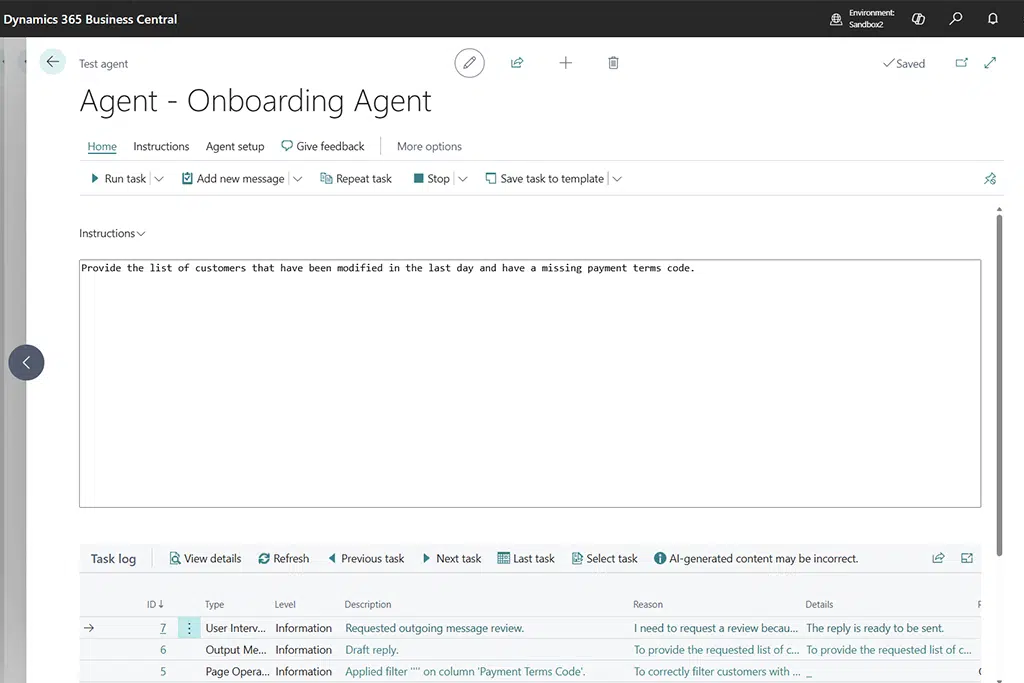
Good agents are built on three reusable patterns: tight scope, minimal permissions, and structured handoff to a human. Let one agent handle one clearly defined process. An agent that tries “a bit of everything” becomes unpredictable. Do you want to automate more? Build multiple small agents instead of one large one. (Impact: High | Effort: Medium)
Tip 2 — Write instructions as prompts, using a keyword library
Writing instructions follows the rules of good prompt engineering: be concrete, unambiguous, and structured. Study the instruction keyword library on Microsoft Learn before you write your first instruction; those keywords drive the agent’s behavior more precisely than loose sentences. (Impact: High | Effort: Medium)


Tip 3 — Create a separate edge case document
Write a separate “edge case” document alongside your instructions. For each main instruction, ask the question: “What does a misinterpretation of this look like?” Then, test exactly those misinterpretations in the sandbox before considering the agent finished. This catches errors that would otherwise only surface in production. (Impact: High | Effort: Medium)
Tip 4 — Grant minimal, role-based permissions
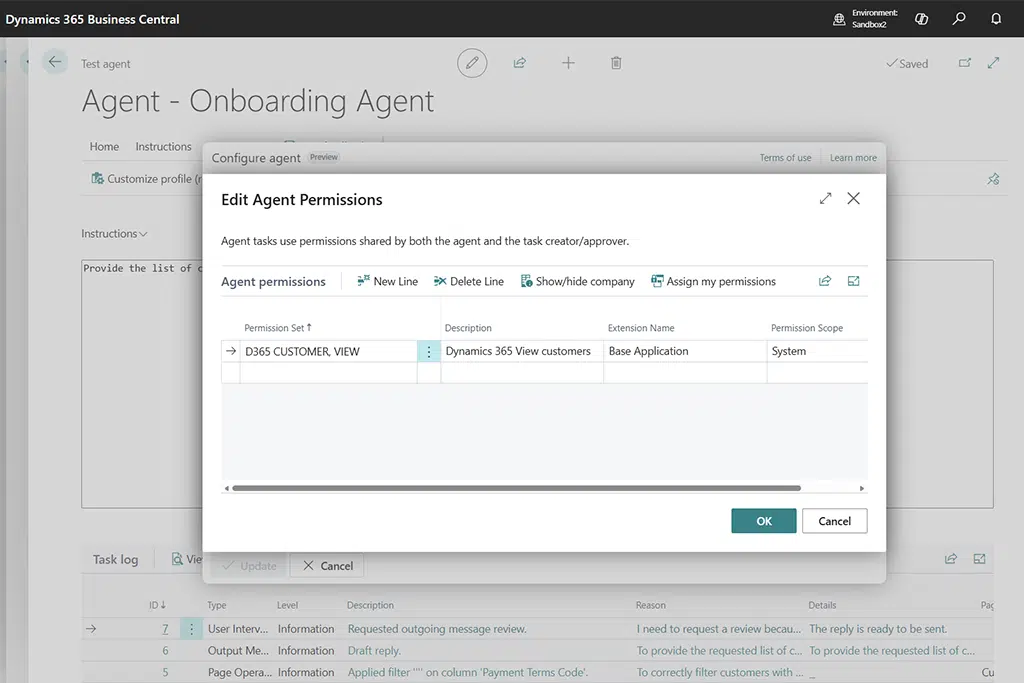
To design agents, you need the “AGENT – ADMIN” permission. Keep the agent’s permissions strict and role-based: do not grant broad permissions “just to get it working.” Test with the minimum set of permissions required by the task and document that set. An agent with overly broad permissions is a risk rather than a helper. (Impact: High | Effort: Medium)

Tip 5 — Start with a working example
Don’t count on a blank slate. A good starting point is an existing example, for instance the Sales Validation Agent: clone and run that first, and only then adapt it. This way, you see the behavior of a working agent before you bend it to your process. (Impact: Medium | Effort: Easy)
Tip 6 — Test in the sandbox, not in production
The design/toolkit environment is intended for sandbox testing. Go through design → configuration → test fully there, including your edge cases, before an agent enters a production environment. Additionally, handle the first live period with human approval for every action. (Impact: High | Effort: Medium)


Step-by-step approach (brief)
- Define identity, goal, and one delimited process.
- Select a template or blank agent via Agent > Create.
- Write instructions using the keyword library; keep them concrete.
- Draft the edge case document and determine the minimum permissions.
- Test in the sandbox, including intentional misinterpretations.
- Go live with human approval; only scale after proven reliability.
Please note: the Agent SDK for AL has also been available in production environments since version 28.1; the broader design toolkit is primarily sandboxed. Verify exact availability in your environment and version.
Also read: tips & tricks for the Sales Order Agent and the Payables Agent. Curious how agents fit into your service process? Discover our field service software.
Frequently asked questions about the Agent Designer in Business Central
Click on a question to see the answer.
Do you want to know which processes are best suited to a custom agent in Business Central?
Shiwan Roepa
+31858200802
info@bluace.nl