


Sales Order Agent in Business Central: tips & tricks for a reliable setup
The Sales Order Agent turns incoming order emails into draft sales orders in Business Central. The technology works; whether it holds up in production depends on the setup. Below are the tips that make the difference between an agent that costs you time and one that saves it. This page is part of our overview of AI agents in Business Central.
How the Sales Order Agent works (in brief)
When the agent is active, a background task runs roughly every 20 seconds to check the linked mailbox for new unread messages. On a new email the agent analyzes the subject, the body and (if configured) the attachments, tries to match the sender to a customer or contact record, recognizes the requested items, and creates a draft quote or order. If the agent finds no customer match, automation halts and the email is flagged for manual review.

Tip 1 — One dedicated mailbox, never shared
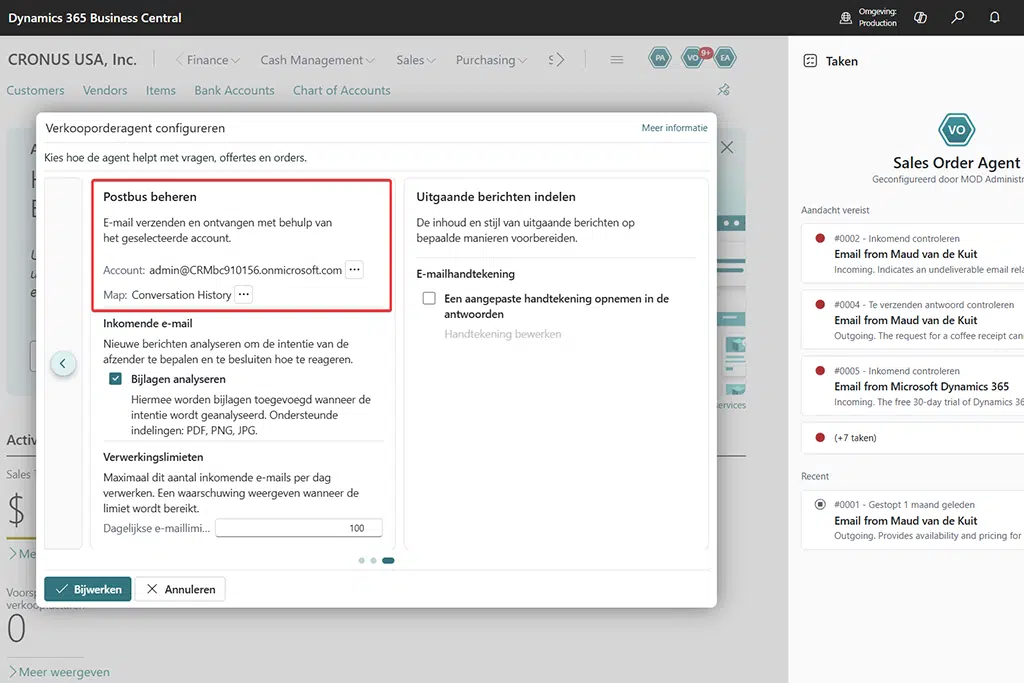
Create a separate Microsoft 365 mailbox exclusively for orders, for example orders@yourcompany.com. Never use this mailbox for anything else and never share it with the Payables Agent. Otherwise every newsletter, quote request or spam message that arrives is picked up by the agent too. Keep the mailbox clean and you keep the output clean. (Impact: High | Effort: Easy — 15 min in Exchange)
Tip 2 — Account for propagation time at activation
When a user activates the agent, it runs as a background task in that user’s context and needs access to the shared mailbox. It can take a few hours for Exchange to propagate the permissions. So don’t schedule activation right before a peak moment; set it up the day before and test calmly. (Impact: Medium | Effort: Easy)

Tip 3 — Make customer recognition watertight
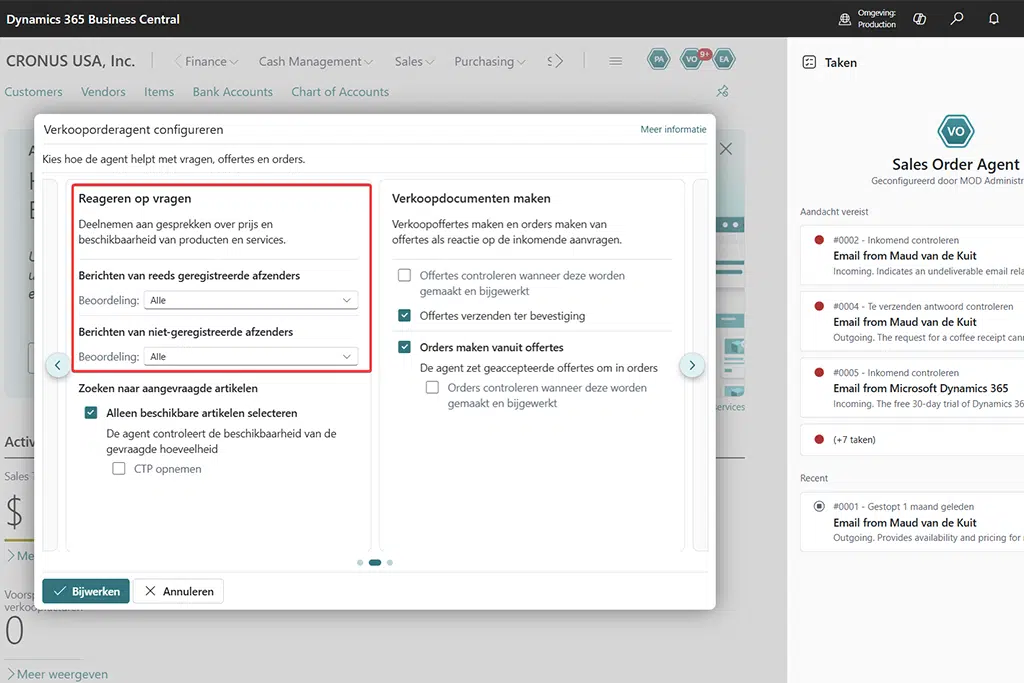
The biggest source of false matches is a missing or wrong email address on the customer card. Two actions that pay off immediately:
- Make sure every customer has a primary order email address on the customer or contact card.
- Add alternative domains/addresses for customers who order from multiple email addresses (purchasing@, orders@ and buyers’ personal addresses).
The more complete your customer data, the less often the agent drops out and needs a human. (Impact: High | Effort: Medium — one-off data cleanup)
Tip 4 — Tune item recognition to how customers order
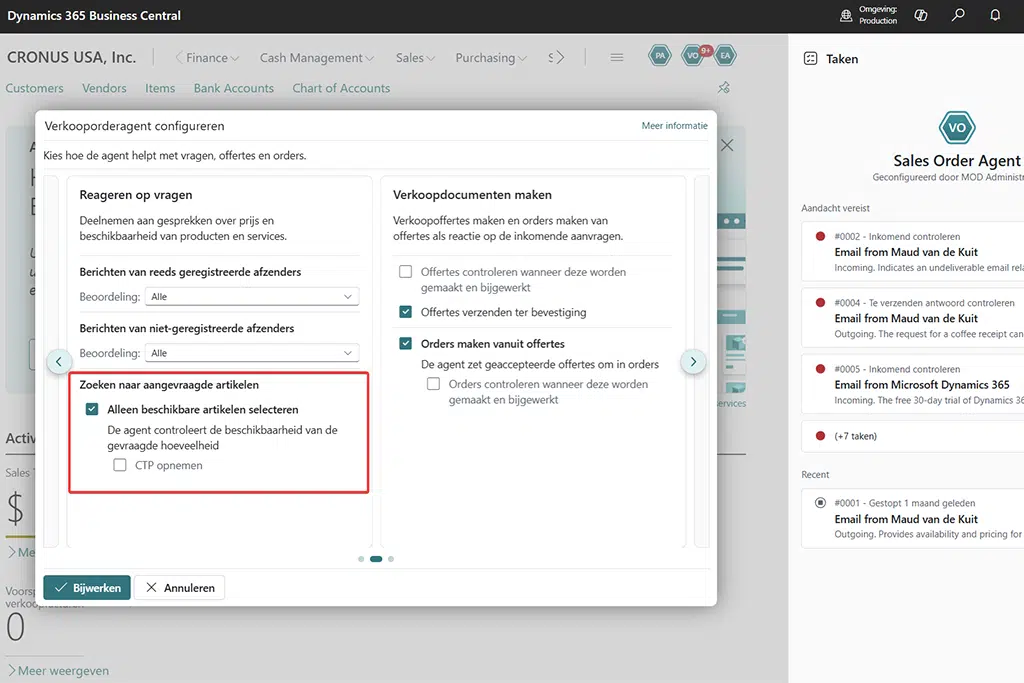
The agent matches requested items against your item list. Customers rarely order with your exact item number. So fill in item references / customer item numbers and clear search terms or synonyms, so that “central heating boiler 24kW” matches just as well as your internal SKU. Start with your top-50 most-ordered items. (Impact: High | Effort: Medium)
Tip 5 — Keep permissions and access tight
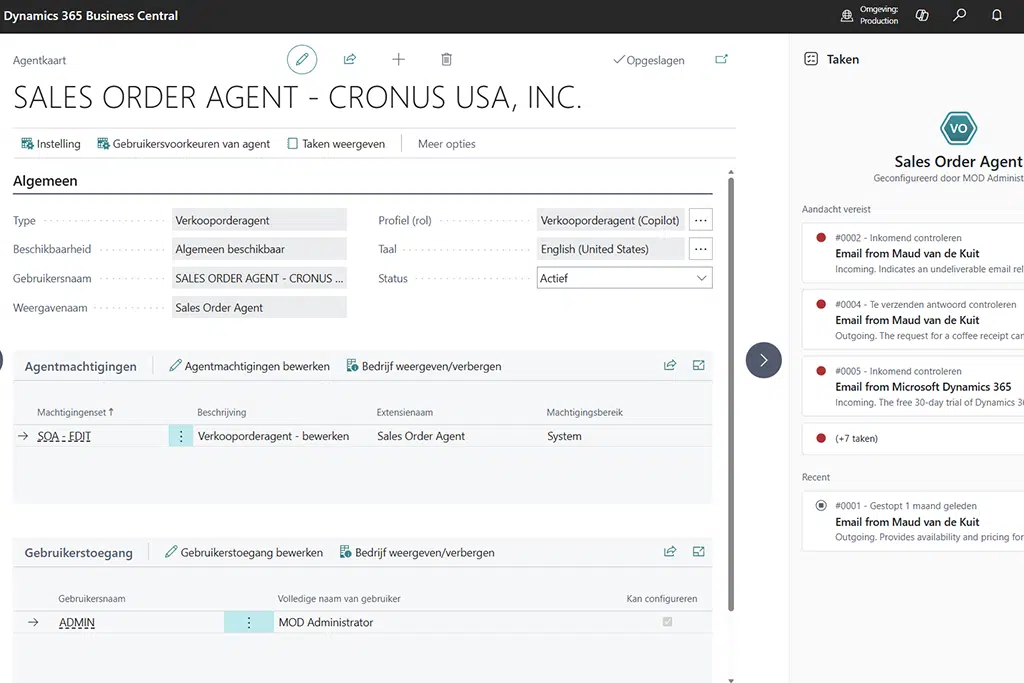
Decide explicitly who may configure the agent and who may review its proposals. A user needs “Can Configure” in the agent’s access list, or the system permission to configure all agents. Give reviewers (back office) read access to the task pane, but keep approval a deliberate human step. (Impact: Medium | Effort: Easy)
Tip 6 — Monitor consumption from day one
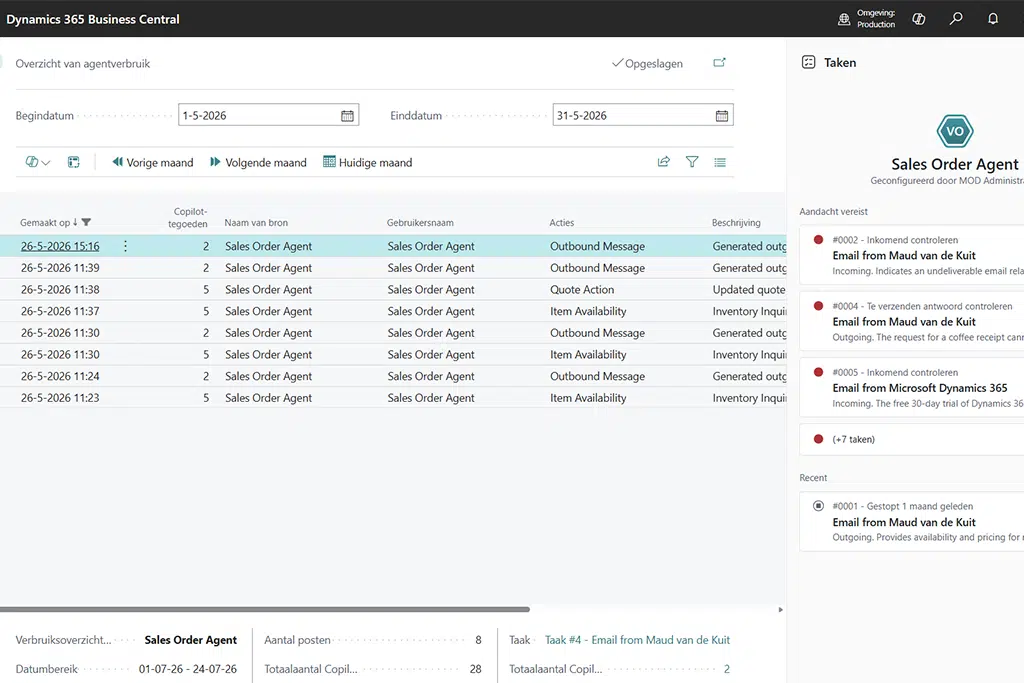
The agent runs on Copilot Credits — you pay per processed email/order. Check the pages that track consumption and set a monthly expectation. This avoids surprises and lets you justify the time saved against the cost incurred. (Impact: Medium | Effort: Easy)

Setup checklist (brief)
- Dedicated mailbox orders@… created and tested.
- Agent activated; permission propagation awaited.
- Customer cards given a primary order email address + alternative addresses.
- Item references/synonyms filled in for the top-50 items.
- Access list and reviewers set up.
- Consumption monitoring in place.
- Pilot with a handful of regular customers before broad rollout.
Estimated time for the full first setup: around half a day, excluding data cleanup of customer and item cards.
Frequently asked questions about the Sales Order Agent in Business Central
Click on a question to see the answer.
Curious how to set up the Sales Order Agent reliably for less manual order work?
Mark Landman
+31 85 820 0802
info@bluace.nl