


Payables Agent in Business Central: tips & tricks for automated purchase invoices
The Payables Agent processes purchase invoices end-to-end: it reads the invoice from the attachment, extracts the data, matches vendor and G/L account or purchase order, and prepares the invoice for approval. It is the agent with the biggest time saving for a finance department with a substantial invoice flow, provided it is set up well. This page is part of our overview of AI agents in Business Central.
How the Payables Agent works in Business Central (in brief)
The agent monitors a shared mailbox for purchase invoices, reads the invoice attachment and prepares the content in Inbound E-Documents. For each extracted field the agent determines a confidence score. The original invoice image stays attached to the posting all the way through. A supervisor reviews, especially the low-score fields, and approves.

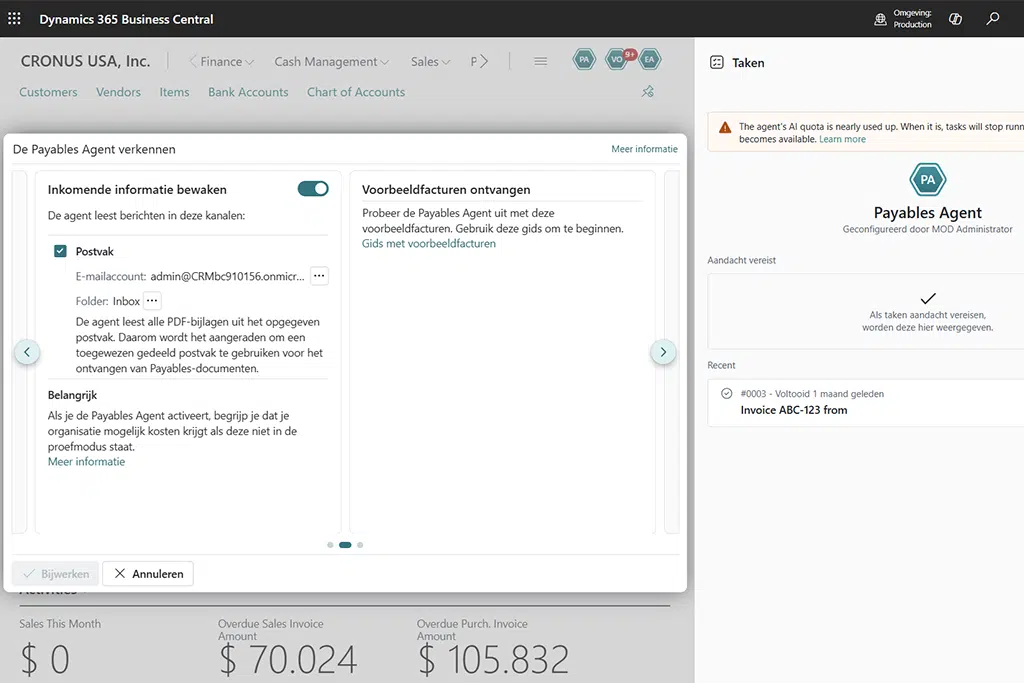
Tip 1 — A separate mailbox, for invoices only
This is the most important tip. Create a dedicated shared mailbox, for example invoices@yourcompany.com or ap@yourcompany.com, and use it exclusively for purchase invoices. If invoices arrive in a shared or personal mailbox, the agent imports everything it sees, newsletters and spam included, and clutters your Inbound E-Documents. Never share this mailbox with the Sales Order Agent. (Impact: High | Effort: Easy)
Tip 2 — Teach your supervisors to read confidence scores
The value of the agent stands or falls with the downstream review. Explicitly train the supervisors who validate the extracted invoices on three things: how to interpret the confidence scores, how to assess the vendor match, and how to handle unknown document types. Without that training, low-score fields get overlooked, invoices get misclassified, or duplicates slip through. (Impact: High | Effort: Medium)
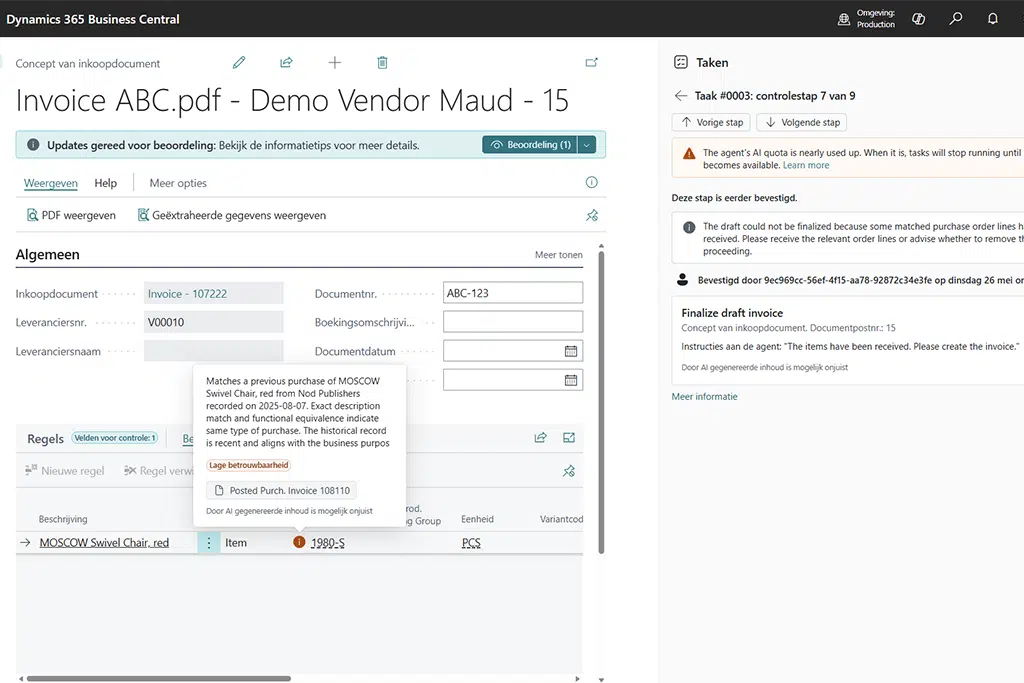

Tip 3 — Start with a pilot group of vendors
Onboard a handful of vendors before scaling broadly. Pick vendors with a consistent, legible invoice layout. This builds confidence, surfaces the exceptions, and lets you tune the settings before the full invoice flow comes in. (Impact: High | Effort: Easy)
Tip 4 — Review exceptions systematically
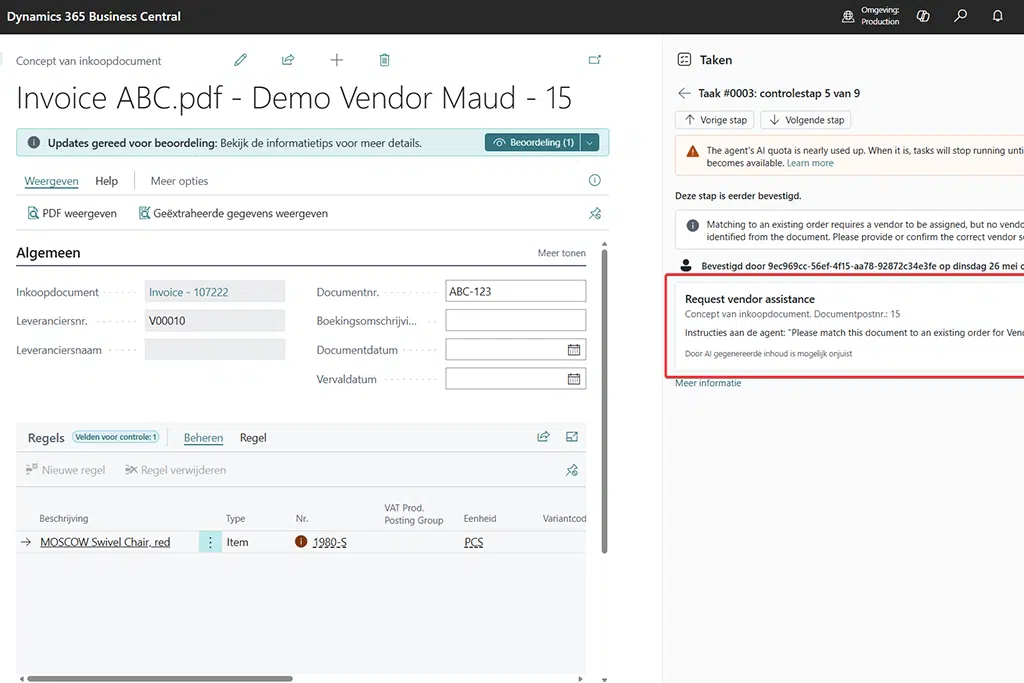
Schedule a recurring moment to audit exceptions: unknown document types and recurring errors. Recognizing and resolving those patterns improves the agent’s accuracy over time. Treat the first few weeks as a learning period, not an end state. (Impact: Medium | Effort: Medium)
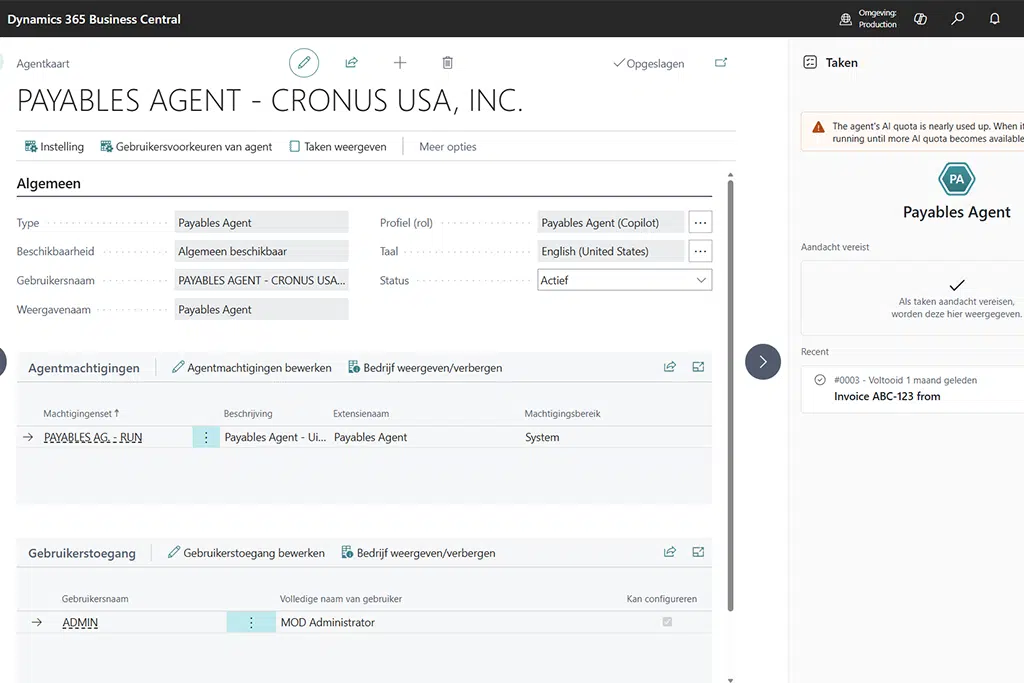
Tip 5 — Keep access role-based and limited
The agent supports role-based control over who can work with it. During the sandbox phase, limit access to named users, so that only they can manage or work with the agent when they log in. Don’t grant broader access than needed; it keeps the audit trail clean. (Impact: Medium | Effort: Easy)
Tip 6 — Monitor cost per processed invoice
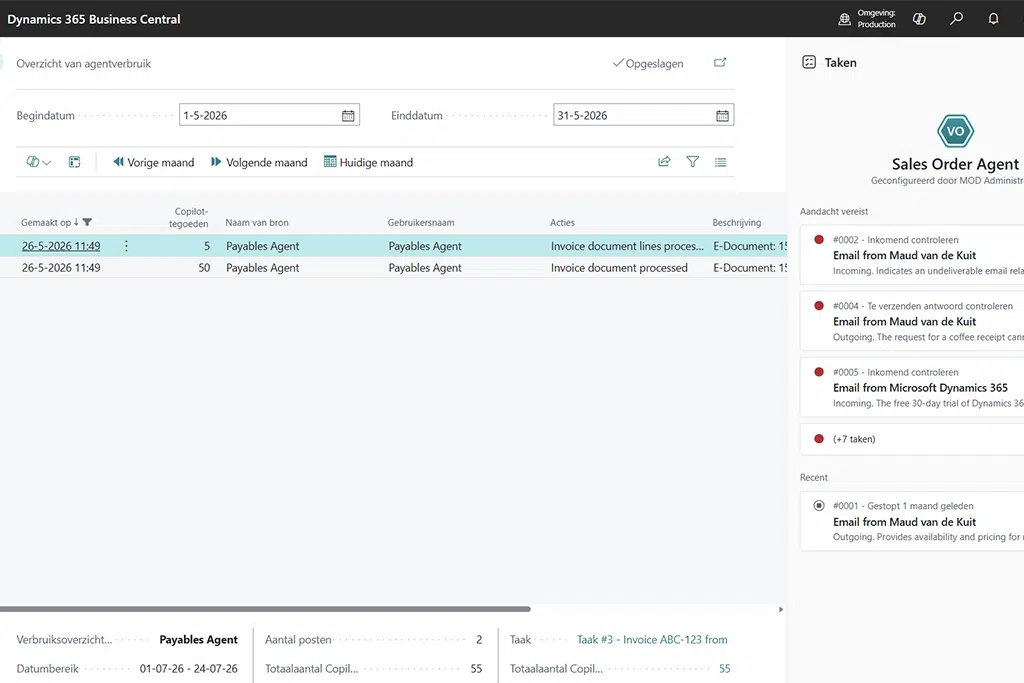
The agent runs on consumption (Copilot Credits), not a fixed license. Find the pages that show cost in real time: every time the agent processes something, you see what that “conversation” costs. Set that against the processing time saved per invoice and you have a hard business case. (Impact: Medium | Effort: Easy)

Setup checklist (brief)
- Dedicated mailbox invoices@… created (never shared with the Sales Order Agent).
- Agent activated; mailbox permissions propagated.
- Pilot group of vendors selected (consistent invoice layout).
- Supervisors trained on confidence scores, vendor match and unknown documents.
- Recurring exception review scheduled.
- Role-based access configured.
- Cost monitoring per processed invoice in place.
Frequently asked questions about the Payables Agent in Business Central
Click on a question to see the answer.
Not sure whether the Payables Agent fits your invoice process?
Ronald Evers
+31 85 820 0802
info@bluace.nl