


Expense Agent in Business Central: tips & tricks for automatic expense claims
The Expense Agent automates the expense claim process from start to finish. An employee uploads or emails a receipt, and the agent extracts the data, categorizes it, detects duplicates, and assembles the expense report. As a rule, the employee only needs to review and confirm. This page is part of our overview of AI agents in Business Central.
Please note: the Expense Agent has been in public preview since May 8, 2026, initially in English and in the United States. Expansion to more languages and regions (including the United Kingdom, Australia, and New Zealand) is planned from July 2026. Verify availability for the Netherlands and the Dutch language in your environment before going live.
How the Expense Agent works (in brief)
Employees submit expenses via a web app, via Outlook, or by emailing a receipt: even without a Business Central license, thanks to a separate web app for non-BC users. From the scanned or emailed receipt, the agent extracts the key fields: category, amount, currency, merchant, payment method, date, receipt number, and a context-based description. Where applicable, the agent itemizes the expense into lines and identifies per diem claims based on itinerary documents. Business Central then handles the posting and the ledger entries.

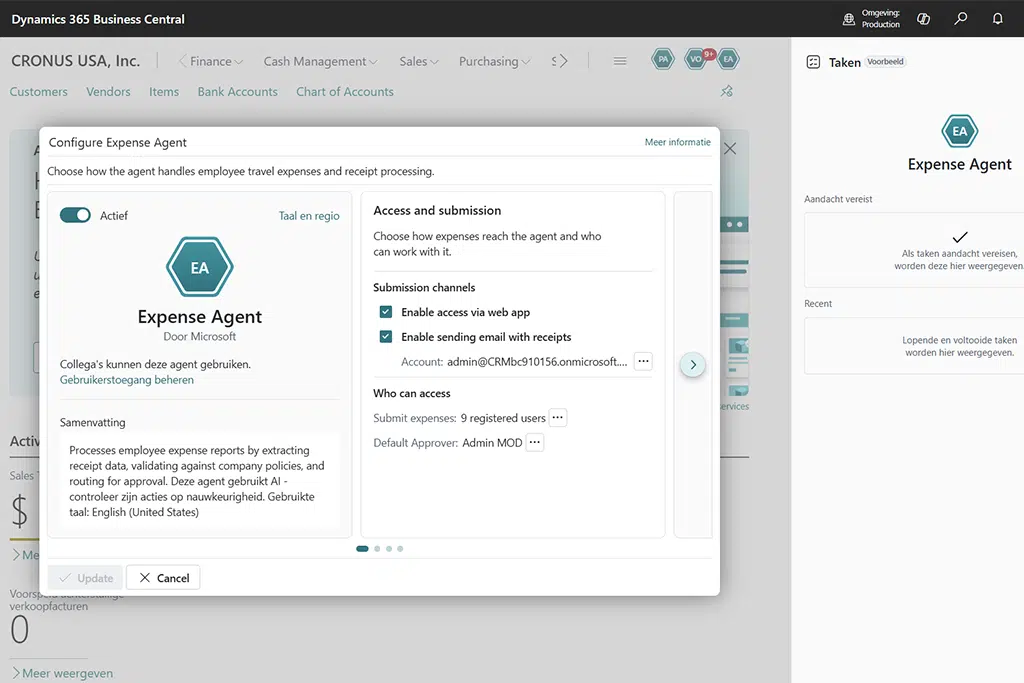
Tip 1: Set up the submission channel for your target audience
Not everyone who submits expenses works in Business Central. For field staff, technicians, and external contractors, the separate web app is the logical route: they do not need a BC license for it. Decide up front, per group, who submits via the web app, via Outlook, or via Copilot Chat, and communicate one clear way of working. The clearer the channel, the cleaner the intake. (Impact: High | Effort: Easy)
Tip 2: Set up the Expense Management module before the agent
The agent auto-fills fields such as category and amount, but matches against your configuration. So first set up the Expense Management module properly: expense categories, per diem rates, mileage allowances, approval workflows, and reimbursement posting. A good category and rate structure directly determines the quality of what the agent delivers. (Impact: High | Effort: Medium)
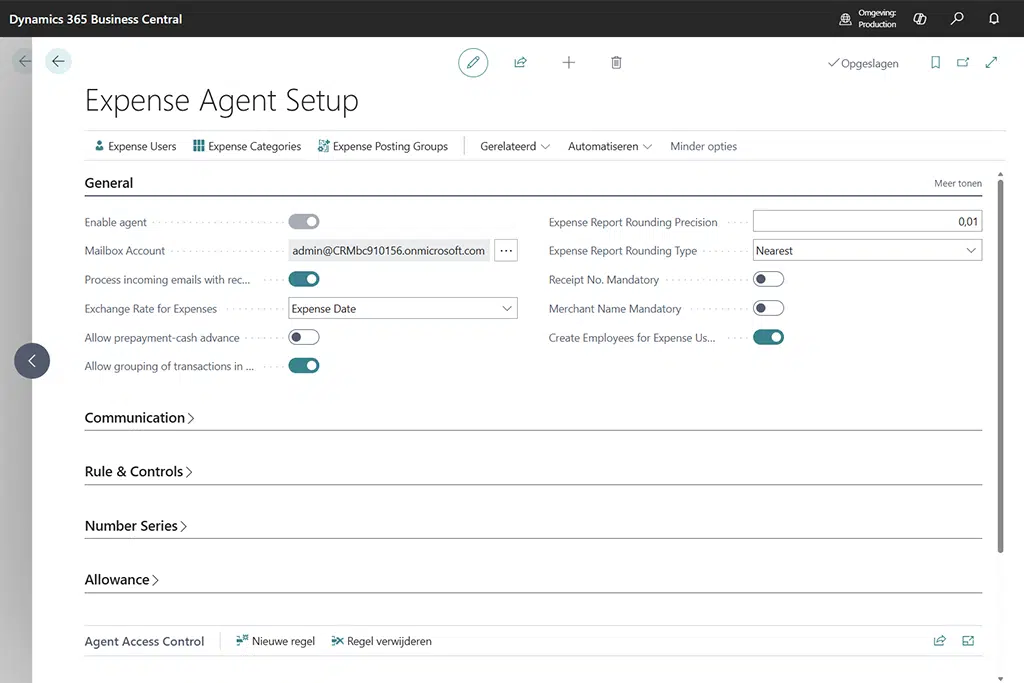

Tip 3: Have employees review, especially on duplicates
The agent detects duplicates, but confirmation remains a human task. Train employees to check, before submitting, that the recognized fields are correct and that a receipt has not already been submitted (for example, a receipt that was both emailed and uploaded). Human in the loop prevents double reimbursements. (Impact: High | Effort: Easy)
Tip 4: Budget Copilot Credits per receipt
The Expense Agent runs on consumption. Each uploaded receipt consumes 50 Copilot Credits, regardless of the number of lines in the resulting expense report. Calculate the expected consumption based on your monthly receipt volume and monitor it. This way, you avoid surprises and can justify the time saved against the cost. (Impact: Medium | Effort: Easy)

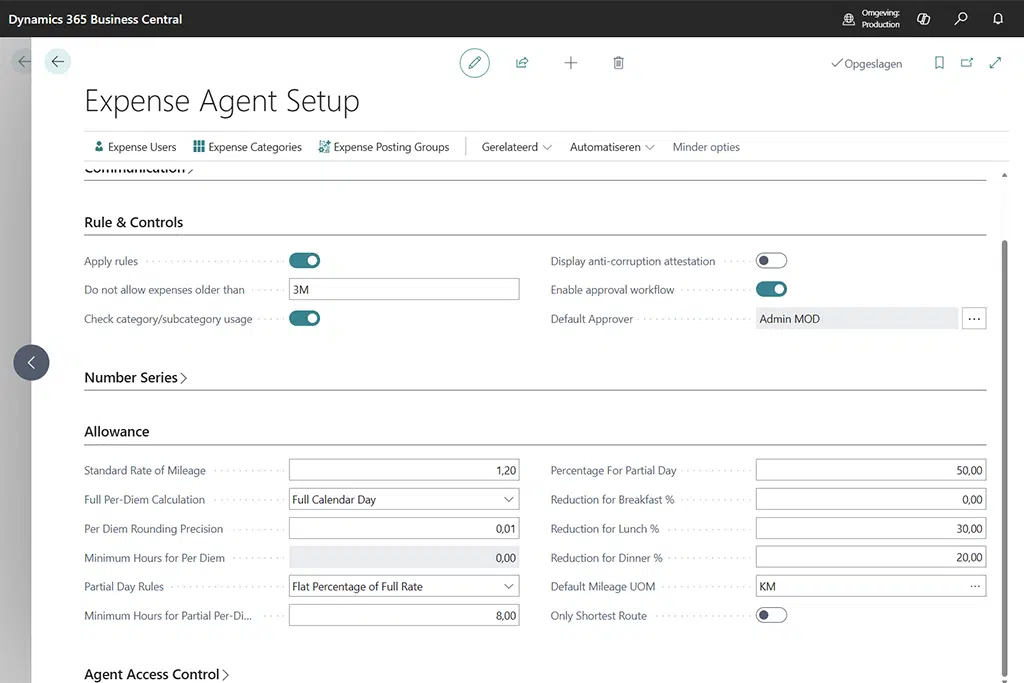
Tip 5: Use per diem and itemization recognition deliberately
The agent can itemize an expense into lines and derive per diem claims from itinerary documents. That only works if you have recorded per diem rules and rates in Business Central and if employees include their itinerary documents. Specify in your work instructions what they need to submit to get the most out of this feature. (Impact: Medium | Effort: Medium)
Tip 6: Treat the preview as a pilot, not as production
Because the agent is in preview and initially English/US-focused, now is the time for a controlled pilot: test in a sandbox, with a small group of submitters and a few typical expense types. Keep human approval on every expense and only scale up once language and region support for the Netherlands is confirmed and stable. (Impact: High | Effort: Medium)


Setup checklist (in brief)
- Expense Management module configured: categories, per diem, mileage, approval, reimbursement.
- Submission channels decided per target group (web app / Outlook / Copilot Chat).
- Web app prepared for submitters without a BC license.
- Work instruction: what to submit (receipt + itinerary document for per diem).
- Employees trained on review and duplicate checking.
- Copilot Credits consumption budgeted (50 credits/receipt) and monitoring in place.
- Sandbox pilot with a small group; Dutch language availability verified.
Frequently asked questions about the Expense Agent in Business Central
Click on a question to see the answer.
Curious how you can automate expense claims with the Expense Agent in Business Central?
Gertjan Lijmbach
+31858200802
info@bluace.nl